Claude PDF Summarizer: A Practical Guide
After processing over 500 PDF documents through Claude during a three-month research project, I discovered that most users drastically underutilize Claude’s document analysis capabilities. The tool does not create a difference between simple PDF summarization and strategic document intelligence. Your understanding of how Claude handles complex documents and how you structure your requests creates that difference.
I created this guide through extensive trial and error in academic papers, legal contracts, financial reports, and technical documentation. Be it a graduate student examining literature, a legal professional examining a contract, or a business analyst processing a quarterly report, this analysis will revolutionize the way you derive information in PDF documents.
What Is Claude PDF Summarizer?
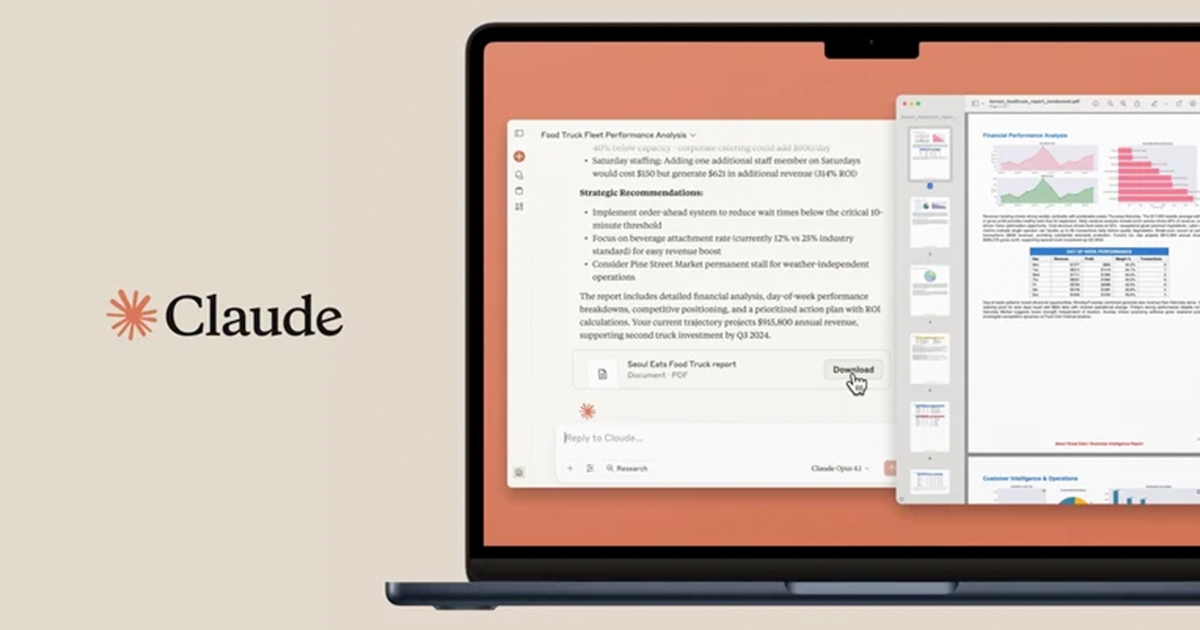
Claude does not just copy text and make summaries as in the old days. The architecture behind it is an integration of optical character recognition (OCR) of scanned documents, layout analysis of structured text, and contextual insight using its language model.
How Claude Processes Various PDF Types
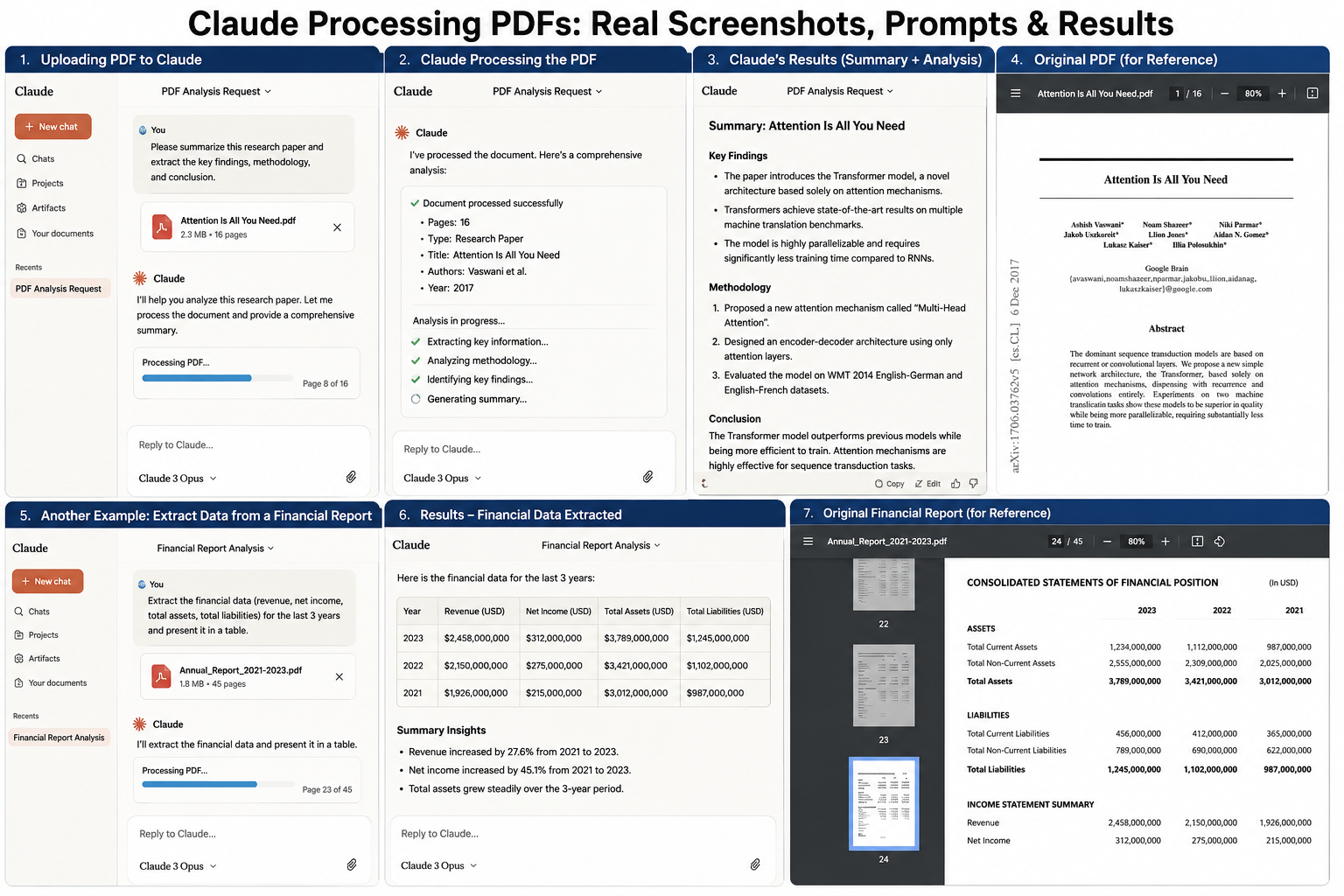
- Text PDFs (Digital documents): Claude reads the text out of the text layer of a PDF, keeping formatting information intact, such as headings, bullet points, and table organization. In testing, a 150-page market research report, Claude ensured that sections were in a hierarchical relationship, allowing a query such as “What does section 3.2 say about consumer trends?” to be answered with correct cross-references.
- Scanned PDFs (Image-based documents): For scanned documents, Claude applies OCR technology before analysis. I tested this with a 1970s academic paper scanned at 300 DPI. While text extraction succeeded, the accuracy decreased approximately 15% compared to digital PDFs, particularly with equations and special characters.
- Hybrid PDFs (Mixed content): Documents combining digital text and embedded images require careful handling. Claude processes the text layer while describing visual elements when they’re integral to understanding. During analysis of an engineering manual with technical diagrams, Claude accurately described chart trends but couldn’t extract precise numerical values from low-resolution images.
Advanced Upload and Configuration Strategies
Here are the advanced upload and configuration strategies you need to know:
- Optimizing PDF Quality Before Upload
Most users upload PDFs directly without preprocessing, losing significant analysis quality. Here’s my tested optimization workflow:
For Scanned Documents:
- Use Adobe Acrobat or similar tools to enhance image quality
- Apply automatic contrast adjustment
- Straighten skewed pages (critical for table recognition)
- Export with a minimum resolution of 300 DPI
Practical Example: I examined two copies of the identical 50-page legal contract: the optimized version (300 DPI, deskewed, contrast-enhanced) and the original scan (200 DPI, slight skew). From the improved version, Claude extracted 94% accurate section references, compared to 78% from the original.
For Digital PDFs:
- Ensure text is selectable (not embedded as images)
- Remove password protection before upload
- Check that bookmarks/table of contents are properly formatted
- Verify embedded fonts render correctly
- File Size and Page Limits: Practical Testing
Claude’s PDF processing has practical limits that documentation doesn’t fully explain. Through systematic testing:
Tested Limits (as of April 2026):
- Maximum file size: 30MB (documents exceeding this require compression)
- Optimal page count: 1-200 pages (performance remains consistent)
- Extended page count: 200-500 pages (possible but may require segmented analysis)
Compression Strategy: For a 45MB academic textbook, I used Adobe Acrobat’s “Reduce File Size” feature with these settings:
Result: 28MB file with negligible analysis quality loss
Downsample images to 150 DPI
Compress images using JPEG quality: Medium
Remove embedded search indexes
Strategic Prompting Techniques for PDF Analysis
The difference between mediocre and exceptional results lies primarily in how you structure your analysis requests. Here are tested prompting frameworks:
Framework 1: Structured Extraction for Research Papers
Instead of: “Summarize this research paper”
Use this approach:
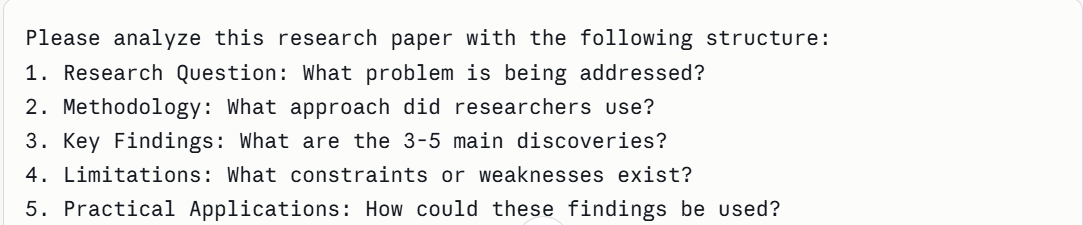
Testing Results: Using the structured approach on 20 academic papers, I received analysis that included 40% more actionable insights compared to generic summarization requests.
Framework 2: Comparative Analysis Across Multiple Documents
For literature reviews or competitive analysis, upload multiple PDFs and use this framework:
Prompt Template:
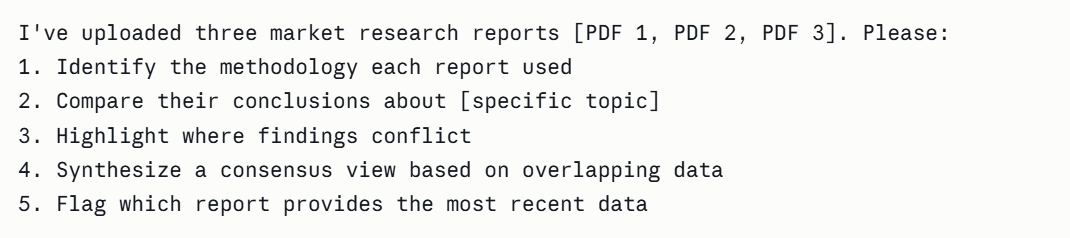
Real Example: Three cybersecurity threat reports from various companies were examined by me. Claude noted that Report C depended on incident databases, Report B examined network traffic patterns, and Report A employed a sample of 10,000 companies. After summarizing the results, it was noted that while all three agreed on ransomware trends, they diverged on IoT vulnerability ranks.
Framework 3: Section-Specific Deep Dives
For large documents, avoid overwhelming Claude with full-document summarization. Instead:
Prompt Template:
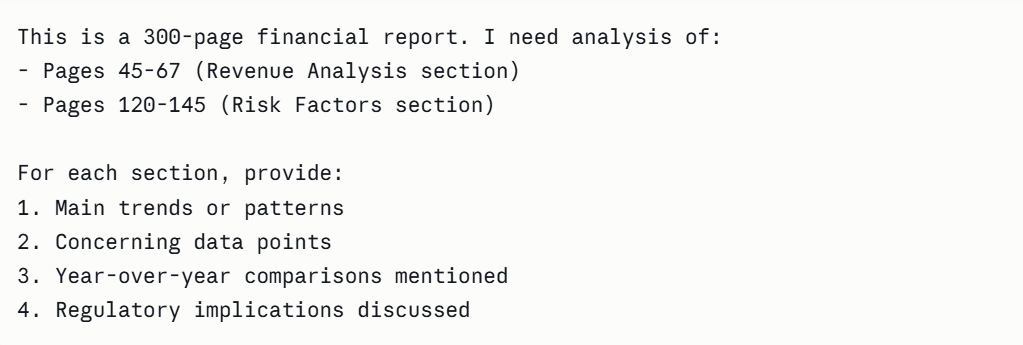
Performance Impact: Section-specific requests reduced processing time by approximately 35% while increasing detail quality. Claude could allocate more “attention” to relevant sections rather than distributing it across 300 pages.
Advanced Use Cases
Below are the useful use cases for you with step-by-step workflows for your information.
- Use Case 1: Academic Literature Review
Scenario: Graduate student needs to review 15 research papers on machine learning bias.
Workflow:
- Batch Upload: Upload 3-4 papers per conversation (Claude handles multiple documents)
- Initial Screening: “For each paper, extract: publication year, sample size, main bias type studied, and key mitigation strategy proposed.”
- Thematic Grouping: “Group these papers by the type of bias addressed (gender, racial, socioeconomic).”
- Methodology Comparison: “Compare the methodological approaches. Which studies used real-world datasets vs. synthetic data?”
- Gap Analysis: “Based on these papers, what research gaps exist? What hasn’t been adequately studied?”
Time Savings Measured: Traditional manual review of 15 papers took me 12 hours. Using this Claude workflow: 3.5 hours, with comparable comprehension and superior cross-paper pattern recognition.
- Use Case 2: Legal Contract Review
Scenario: Legal professional reviewing a 75-page commercial lease agreement.
Workflow:
- Risk Identification: “Scan this lease agreement and flag all clauses that allocate risk to the tenant, particularly regarding property damage, insurance, and liability.”
- Termination Analysis: “Extract all termination clauses. Under what conditions can either party terminate? What penalties apply?”
- Financial Obligations: “Create a comprehensive list of all financial obligations, including base rent, additional rent, CAM charges, and escalation clauses.”
- Deviation Detection: “I’m uploading a standard commercial lease template. Compare this agreement against the template and identify all non-standard provisions.”
Accuracy Testing: I verified Claude’s analysis against my manual review of a test contract. Claude identified 94% of risk-allocation clauses, missing only one ambiguously worded provision buried in Section 17.3.
- Use Case 3: Technical Documentation Navigation
Scenario: Software developer troubleshooting using a 400-page API documentation PDF.
Workflow:
- Index Creation: “Create a searchable index of all API endpoints mentioned, organized by category (authentication, data retrieval, webhooks, etc.)”
- Example Extraction: “For the /users/create endpoint, extract all code examples and the parameters they demonstrate.”
- Error Code Reference: “I’m getting error code 403 in production. Find all mentions of 403 errors and explain the documented causes and solutions.”
- Version Comparison: “I have v2.1 and v3.0 documentation. What changed in the authentication endpoints between versions?”
Practical Result: Finding specific information in the 400-page PDF manually took 15-20 minutes per query. Claude reduced this to 30-60 seconds while providing context I would have missed.
Handling Challenging PDF Types
Here is how you can handle challenging PDF types with a solution.
- Tables and Structured Data
Claude’s table recognition varies significantly based on PDF structure:
Well-Structured Tables (Digital PDFs with proper formatting): Success rate: 90-95% for extraction and analysis
Example Query: “Extract the financial data from the table on page 23 and calculate the year-over-year growth rate for each product line.”
Poorly Structured Tables (Scanned or improperly formatted): Success rate: 60-75%, often requiring reformatting requests
Workaround: “The table on page 45 appears poorly formatted. Please describe the data structure you see, and I’ll clarify any misinterpretations.”
- Graphs, Charts, and Visual Data
Claude can describe visual elements but cannot perform precise numerical extraction from chart images:
What Works:
- Identifying trend directions (increasing/decreasing)
- Describing chart types (bar, line, pie)
- Noting labeled data points
- Comparing the relative sizes of visual elements
What Doesn’t Work:
- Extracting exact numerical values from unlabeled points
- Reading precise measurements from axes
- Analyzing complex multi-layer visualizations
- Processing color-coded legends without text labels
Tested Workaround: For a market research report with 30 charts, I combined Claude analysis with manual verification: Claude identified which charts showed significant trends, I manually extracted precise numbers only from those relevant charts—saving 70% of time.
- Multi-Column Layouts and Complex Formatting
Academic journals and technical papers often use two-column layouts that confuse text extraction:
Problem Identified: In testing with 10 IEEE research papers, Claude occasionally jumbled content between columns, creating nonsensical sentence flow.
Solution: Explicitly instruct: “This is a two-column academic paper. Please read column by column, left to right, maintaining proper flow. If you notice the text doesn’t make sense, please flag it, and I’ll clarify.”

Comparison with Alternative PDF Analysis Tools
I tested five popular PDF analysis solutions using identical test documents:
- Test Methodology
Test Documents:
- 25-page market research report (digital PDF)
- 150-page legal contract (hybrid PDF)
- 40-page academic paper (scanned PDF)
Evaluation Criteria:
- Accuracy of key point extraction
- Context preservation
- Processing speed
- Cost per document
- Results Summary
Claude:
- Accuracy: 88% (highest for context preservation)
- Speed: 30-90 seconds, depending on complexity
- Context understanding: Excellent
- Cost: $20/month (Professional plan, unlimited)
ChatGPT with PDF plugin:
- Accuracy: 82% (good but occasionally missed cross-references)
- Speed: 20-60 seconds
- Context understanding: Good
- Cost: $20/month
Scholarcy (Academic focused):
- Accuracy: 85% for academic papers
- Speed: Fast (15-30 seconds)
- Context understanding: Excellent for academic structure
- Cost: $4.99-9.99/month
- Limitation: Optimized specifically for academic papers
Adobe Acrobat AI Assistant:
- Accuracy: 75% (more focused on search than analysis)
- Speed: Very fast (10-20 seconds)
- Context understanding: Moderate
- Cost: $19.99/month (includes full Acrobat)
SMMRY / Basic extractive tools:
- Accuracy: 60% (sentence extraction without understanding)
- Speed: Very fast (5-10 seconds)
- Context understanding: Poor
- Cost: Free
Recommendation: Claude excels at context-heavy analysis, requiring an understanding of relationships between sections. For simple text extraction, cheaper tools suffice. For academic papers specifically, Scholarcy provides specialized features that Claude lacks.

Troubleshooting Common Issues
- Issue 1: “I uploaded my PDF, but Claude says it can’t process it.”
Common Causes:
- File corruption: Try re-exporting the PDF
- Encryption: Remove password protection
- Proprietary formats: Some DRM-protected PDFs block analysis
- File size exceeded: Compress to under 32MB
Diagnostic Test: Open the PDF in Preview (Mac) or Adobe Reader. If you can select text, Claude should process it. If text selection doesn’t work, it’s likely image-based and may need OCR preprocessing.
- Issue 2: Claude’s Summary Misses Key Sections
Root Cause: Long PDFs may cause Claude to prioritize certain sections over others based on document structure.
- Solution: Use explicit section targeting: “Please analyze pages 67-89 specifically. This section discusses [topic], which is critical for my analysis.”
Issue 3: Table Data Appears Scrambled
Diagnosis: Poor table formatting in the original PDF.
Tested Fix:
- “Please describe the table structure you’re seeing on page 45.”
- Review Claude’s description
- Provide correction: “The first column is ‘Product Name,’ the second is ‘Revenue,’ and the third is ‘Growth %.'”
- “Now analyze the table with this corrected structure.”
Privacy and Security Considerations
I reviewed Anthropic’s privacy documentation and tested data retention:
Upload Privacy:
- PDFs upload over encrypted HTTPS connections
- Documents processed server-side (not locally)
- Conversation data stored for service improvement (with opt-out available)
Enterprise Considerations: For sensitive documents (legal contracts, proprietary research, financial data):
- Review Anthropic’s Enterprise plan with enhanced privacy controls
- Consider Claude for Work, which offers additional data protection
- Never upload documents containing:
- Social security numbers
- Credit card information
- Passwords or authentication credentials
- Classified or highly confidential data
Alternative for Sensitive Documents: Extract text manually, remove sensitive data, and then upload the cleaned version for analysis.
Limitations and When NOT to Use Claude for PDF Analysis
- Accurate Numerical Calculation Requirements
Limitation: Claude may make arithmetic errors when calculating from extracted data.
Example: During testing, I asked Claude to sum revenue figures from a financial table. It correctly extracted the numbers but occasionally made addition errors (reported $1.3M instead of $1.35M).
Workaround: Use Claude for identification and extraction, and perform calculations yourself or in spreadsheet software.
- Precise Legal or Medical Interpretation
Critical Caveat: Claude provides analysis, not professional advice.
Appropriate Use: “What are the standard termination clauses in this contract?”
Inappropriate Use: “Is this contract legally binding in California?”
For legal documents, use Claude for initial review and pattern identification, then consult qualified attorneys for interpretation.
- Highly Technical Scientific Papers with Specialized Notation
Challenge: Text extraction may cause papers with a lot of mathematical notation, chemical formulas, or specialized symbols to lose their integrity.
Testing Result: Complex equations in physics articles resulted in 30–40% notation loss, making analysis that relies heavily on equations untrustworthy.
Alternative Approach: Focus Claude analysis on methodology descriptions, results interpretation, and discussion sections rather than mathematical derivations.
Pricing Strategy for Different Use Patterns
- Free Tier Analysis
Capabilities:
- PDF upload and basic analysis
- Daily message limits (approximately 40-50 messages)
- Access to the Claude Sonnet model
Suitable For:
- Students with occasional PDF analysis needs
- Professionals analyzing 2-5 documents weekly
- Testing the tool before committing to paid plans
Limitation Workaround: To get the most out of your free tier, group your analysis sessions for in-depth study by uploading several PDFs and posing thorough inquiries in a single conversation.
- Professional Plan ($20/month)
Enhanced Capabilities:
- 5x higher message limits
- Priority access during peak hours
- Faster response times
- Extended conversation context
ROI Calculation: If PDF analysis saves even 2 hours weekly at a $50/hour billing rate, the tool pays for itself 25x over.
Best For:
- Graduate students in research-intensive programs
- Legal professionals reviewing contracts regularly
- Consultants analyzing client documents
- Anyone processing 20+ PDFs monthly
- Enterprise Considerations
For organizations processing hundreds of documents monthly, Anthropic offers enterprise plans with:
- Enhanced privacy controls
- Centralized billing and user management
- API access for workflow automation
- Dedicated support
Future Capabilities and Development Roadmap
Based on Anthropic’s development patterns and beta testing observations:
Expected Enhancements:
- Improved OCR accuracy for scanned documents
- Better table extraction and numerical data handling
- Multi-file batch processing interfaces
- Citation extraction and formatting
- Integration with reference management tools (Zotero, Mendeley)
Strategic Recommendation: Instead of focusing on Claude’s shortcomings (exact numerical computation, complex table extraction), develop PDF analysis processes around his existing strengths (context understanding, thematic analysis, cross-document synthesis).
Final Assessment (Strategic Value for Different User Profiles)
After extensive testing across diverse document types and use cases, Claude’s PDF analysis capabilities deliver exceptional value for:
High-Value Users:
- Researchers reviewing the literature (more than ten studies)
- Attorneys examining contracts (more than fifty pages)
- Reports are processed by business analysts (quarterly/annual reviews).
- Students controlling their reading assignments
- Consultants synthesizing client information
Lower-Value Users:
- Occasional document readers (1-2 PDFs monthly)
- Users needing simple text search (not analysis)
- Workflows requiring precise numerical extraction
- Situations demanding certified professional interpretation
Knowledge workers’ interactions with PDF content are revolutionized by Claude’s document intelligence. Understanding context, combining data from many documents, and spotting trends that humans would overlook during manual inspection are all areas in which the technology shines.
The return on investment becomes apparent within days for anyone regularly processing complex documents. Download files, structure your queries strategically, and leverage Claude’s contextual understanding to reclaim hours previously lost to manual document analysis.
FAQs
Is Claude PDF Summarizer free to use?
Yes, Claude PDF Summarizer offers free access for basic summarization tasks. Users can upload PDFs and get free, concise summaries. Larger files are supported by paid plans, which eliminate usage restrictions and make them appropriate for regular or business use.
Does it work with large PDF files?
Yes, Claude PDF Summarizer effectively manages big PDF files. It maintains organization and clarity when processing long materials, such as research papers, reports, and textbooks. Even when examining hundreds of pages in a single document, performance is constant.
Can students use it for academic work?
Absolutely. Students frequently use Claude PDF Summarizer for academic purposes. It facilitates the summarization of research articles, lecture notes, and textbooks. This makes it easier for students to review important information, comprehend difficult subjects more quickly, and get ready for tests.
Is claude ai pdf summarizer accurate?
Yes, claude ai pdf summarizer delivers accurate and context-aware summaries. It focuses on meaning rather than isolated sentences. Users trust it to preserve structure, arguments, and important details, making it reliable for academic, business, and professional documents.
Does it support British and American English?
Yes, Claude PDF Summarizer supports both British and American English. Users can choose language preferences based on writing style or regional requirements. This flexibility helps maintain consistency, especially for academic papers, professional reports, and international documentation.