
Claude AI Desktop App: The Complete 2026 Guide
The Claude desktop app is no longer just a chat window on your computer. In 2026, it ships with three distinct working modes, a growing ecosystem of connectors, native computer use capabilities, and an agentic engine that can carry out complex tasks while you focus on something else.
This guide covers all three modes, the real system requirements, how history and syncing actually work, and which workflows belong where.
What the Desktop App Actually Is in 2026
Anthropic released Claude Desktop in late 2024 as a native app separate from the browser. Since then, it has grown substantially. The app now contains three modes, i.e., Chat, Cowork, and Code. All modes share the same shell and the same Claude account.
You access it from your taskbar or dock, or with a keyboard shortcut you configure yourself. Chat history syncs with your account, so conversations appear across the web interface and the desktop app efficiently.
The Three Modes
This is the most important thing to understand about Claude Desktop in 2026. The three tabs at the top of the interface are not cosmetic. Each one is built for a fundamentally different type of work.
Chat
Chat works the same way claude.ai does in the browser, plus several features that come from running natively on your desktop.
Quick entry overlay. On Mac, double-tap the Option key from anywhere on your screen. A compact Claude window appears on top of whatever you are working on. You ask your question and receive an immediate response. This smooth interaction lets you return to work instantly without ever switching apps or opening a browser.
Screenshots and window sharing. Capture your screen directly inside a Chat conversation. Instead of describing what you are looking at, you show Claude the dashboard, error message, or document. This saves significant time in practice.
Dictation. Speak your prompt instead of typing. Useful when you are thinking through a problem or want to move faster than your keyboard allows.
Connectors. Connect local tools and services so Claude can pull data from apps running on your machine. This connects Chat to your existing workflow rather than treating it as a separate island.
Chat is where you start when you need fast answers, want to brainstorm, need a quick draft, or are working through something back and forth with Claude.
Cowork
Cowork is the mode that changes how people think about what AI can actually do. It launched in January 2026 and became generally available on both Mac and Windows in April 2026.
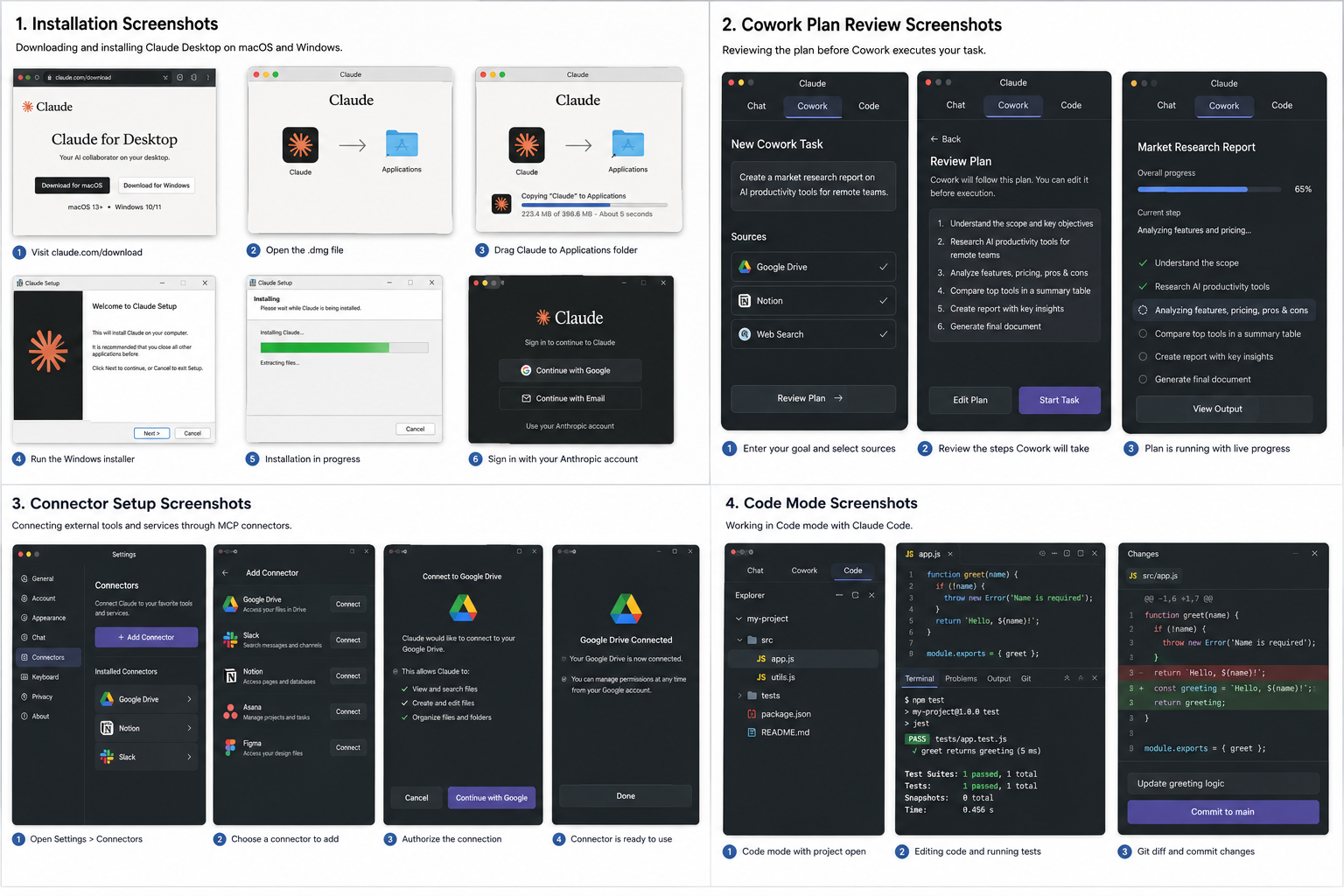
You give Cowork a goal. It builds a plan, shows you the steps, and executes. The platform actively processes multiple data sources to create functional files, including Word documents, Excel spreadsheets, PDFs, and PowerPoint presentations. It then leverages your connected services to pull real-time information and execute targeted actions automatically. You watch progress in the sidebar as it works.
How it runs. Cowork executes inside an isolated virtual machine on your computer. Anthropic’s own documentation describes it as running “locally on your computer in an isolated VM, enabling direct access to local files and MCP integrations.” The VM provides a reliable safety layer for your data. This isolated environment prevents Cowork from accidentally altering files or system settings outside your explicitly designated access boundaries.
What it handles well. Multi-source research with a finished deliverable. Cross-source financial analysis. Contract review across multiple documents. Building a slide deck from scattered materials. Any task that requires gathering information, making sense of it, and producing something polished.
Sub-agents and parallel work. Cowork can spin up sub-agents to tackle different parts of a project simultaneously. A market research brief might run competitor analysis, financial data review, and source gathering at the same time rather than working through each one in sequence.
Computer use. As of March 2026, Cowork gained computer-use capabilities. When its built-in tools do not cover what you need, it can visually interact with your screen, clicking, typing, and navigating apps. This is done through OS screen permissions you grant explicitly.
Plan review. Before starting, Cowork often asks a short set of clarifying questions about scope, format, and constraints. It then shows you a plan you can review before it begins. This keeps you in control of long-running tasks without requiring you to monitor every step.
Plan availability. Cowork requires a paid plan: Pro, Max, Team, or Enterprise. The free plan covers Chat only.
Code
Code mode is Claude Code integrated directly into the desktop app. It is the mode for writing, testing, and deploying software.
It is git-aware, terminal-native, and built for real development workflows. You get visual diffs, shell command execution, test running, and subagent orchestration for parallel work on larger codebases. CLAUDE.md files let you store persistent project context so Claude understands your codebase from the start of each session.
Code and Cowork share the same underlying engine. Both run on the Claude Code system, which means both can sustain long tasks, spin up sub-agents, and work independently. The difference is the interface and the target: Cowork is designed for knowledge workers handling documents and data, while Code is a full development environment for programmers.
Code also gained computer use capabilities in March 2026, alongside Cowork.
MCP Connectors: How the App Connects to Your Tools
The Model Context Protocol (MCP) powers the connector ecosystem across all three modes. Connectors let Claude interact with external tools and services — Google Workspace, Slack, Notion, Asana, Canva, Figma, and a growing list of others.
Anthropic launched a one-click connector marketplace, making setup significantly easier than the earlier manual MCP configuration process. Team and Enterprise plans gained a plugin marketplace in February 2026, and Anthropic released 11 open-source plugins across domains, including sales CRM integration, legal document drafting, and project management.
In Chat mode, connectors give Claude access to your local tools and services. In Cowork, they give Claude the ability to pull live data and take action across your connected applications as part of executing a task. In Code, they can connect to issue trackers, CI systems, and other developer tools.
You add connectors through Settings in the app. Desktop connectors link Claude directly to software tools running on your local machine. In contrast, web connectors access your cloud services through a standard web browser.
History and Account Syncing
The previous version of this article stated that desktop and browser histories remain permanently separate. That was wrong.
Your Claude account maps your conversation history across interfaces. Chat conversations started on the desktop app appear in the browser version at claude.ai, and vice versa.
The distinction worth understanding is at the mode level. Standard Chat conversations sync with your account and appear across platforms. Code sessions operate natively on your local file system and track structural changes directly through your Git setup. This localized architecture ensures your project repository maintains the complete context rather than relying on a cloud conversation log. Cowork sessions operate in a VM that has access to your local files and connected services. The working context for these sessions is tied to the task environment rather than a single shareable conversation thread.
For everyday Chat use, account syncing works seamlessly across desktop and browser.
System Requirements for 2026
The previous requirements listing 4GB of RAM as the minimum are outdated. Cowork runs a local VM, can orchestrate multiple sub-agents, and processes large documents across connected services simultaneously. The hardware bar has moved.
macOS:
- macOS 13 Ventura or later (required — macOS 12 is no longer supported)
- 8GB RAM for Chat-only use
- 16GB RAM is strongly recommended with Cowork active
- 5GB+ free disk space (1GB for the app itself, additional space for Cowork’s VM image and project work trees)
- Apple Silicon or Intel processor
Windows:
- Windows 10 (build 1809 or later) or Windows 11, 64-bit
- Cowork on Windows 11 requires the Hyper-V stack to be available
- 8GB RAM for Chat-only use
- 16GB RAM is strongly recommended with Cowork active
- 5GB+ free disk space
Linux: Not officially supported.
Network: Outbound HTTPS to api.anthropic.com for all modes. Cowork and Connectors additionally require OAuth callbacks on localhost for authentication flows.
You must budget a minimum of 16GB of RAM if you run Cowork alongside resource-heavy applications like video editors, virtual machines, or multiple browser tabs. For optimal performance across these demanding multitasking workloads, you should prefer 32GB of RAM.
Installation
Download the app at claude.com/download. Anthropic provides macOS, Windows, and Windows ARM builds from the same page. Sign in with your Anthropic account after installation. The app syncs your plan and conversation history automatically.
Setting Up the App for Productive Use
Set your keyboard shortcut. Assign a global shortcut to open Claude from anywhere. On Mac, double-tapping the Option key opens the Chat overlay by default. You can configure additional shortcuts in Settings.
Configure file access for Cowork. When you use Cowork for the first time, grant it access to the folder or folders you want it to work with. Be deliberate about this. Cowork operates inside a VM but reads from whatever directories you share with it.
Connect your tools. Go to Settings and add the connectors relevant to your workflow. Start with the tools you use every day. Adding Google Drive or Notion early makes Chat and Cowork significantly more useful for document-heavy work.
Choose your model tier. Cowork defaults to Opus 4.8 on heavier tasks and Sonnet 4.6 on standard workloads. You can adjust this based on the complexity of your tasks and your plan’s usage limits.
Which Mode to Use for Which Work
This is where most users lose time early on. The instinct is to use Chat for everything because it is familiar. That leaves most of Cowork’s and Code’s capability unused.
Use Chat when: You need a fast answer. You are brainstorming and want to think out loud. You are drafting something short. You want to ask a question about something on your screen.
Use Cowork when: The task requires pulling from multiple sources. You want Claude to produce a finished document, a report, an analysis, a deck, or a contract review. You need to connect to external tools as part of the task. You want to run a task in the background while you do other work.
Use Code when: You are working in a codebase. You need git awareness, terminal access, or visual diffs. You are building, testing, or deploying software.
The cleanest way to think about it is that Chat is for conversation, Cowork is for knowledge work deliverables, and Code is for software development.
Pricing: What Each Plan Covers
Claude’s pricing is consistent across desktop and browser. The app itself costs nothing extra.
Free Plan: Chat only. Daily message limits vary by server demand. Cowork and Code require a paid plan.
Pro ($20/month): Includes Cowork and Code access. Higher usage limits. Priority access during peak hours.
Max (multiple tiers starting at $100/month): Significantly higher usage limits. Designed for heavy daily use of Cowork, Code, and the full connector ecosystem.
Team ($25/user/month): Centralized billing, admin controls, usage analytics, and the plugin marketplace for connecting shared organizational tools.
Enterprise: Custom pricing. Centralized management, security controls, and priority support.
For individual users running Cowork regularly, the Pro plan covers typical daily use. Power users who run multiple long Cowork tasks daily will find the Max plan better suited to their volume.
Troubleshooting Common Issues
Network connection errors. Check whether your network uses a corporate proxy. If it does, configure proxy settings manually — macOS: System Preferences > Network > Advanced > Proxies. Windows: Settings > Network & Internet > Proxy.
Cowork fails to start on Windows. Verify that Hyper-V is enabled on Windows 11. Cowork’s local VM requires the Hyper-V stack to be available. Check this in Windows Features.
Connectors not authenticating. Connectors use OAuth callbacks on localhost. Some corporate firewalls block localhost redirects. Check with your IT team if the connector authentication consistently fails on a work machine.
App is slow with Cowork running. Cowork’s VM competes for RAM with other applications. You must close memory-heavy applications, such as video editors, virtual machines, and browsers with many open tabs, before you run demanding Cowork sessions. Taking this proactive step ensures stable performance on machines with less than 16GB of RAM.
FAQs
Does the desktop app cost extra?
No. Your existing plan covers all three modes. Cowork and Code require a paid plan, but the app download itself is free.
Does conversation history sync between desktop and browser?
Yes. Chat conversations sync across your account and appear in both the desktop app and the browser version at claude.ai.
Does Cowork work offline?
No. All three modes require an internet connection. Cowork also needs connectivity to reach its VM and any connected services.
Is Cowork safe to use with sensitive files?
Cowork runs in an isolated VM and only accesses folders you explicitly share with it. Review Anthropic’s privacy policy at anthropic.com/privacy before sharing confidential documents.
What is the difference between Cowork and Code?
Both run on the Claude Code engine. Cowork is designed for knowledge workers — documents, research, analysis, deliverables. Code is designed for software developers — codebases, terminals, git, test runners. The underlying capability is similar; the interface and workflow are built for different types of work.
Can I use all three modes on the same account?
Yes. All three modes share the same app and the same Claude account. You switch between them using the tabs at the top of the interface.