Claude AI for Computer Use: My Honest Productivity Review (Tested over 30 days)
I’ve spent the last 30 days using Claude AI as my primary desktop assistant for real work. I don’t mean demos and not cherry-picked examples. I write long-form content daily, manage research across multiple projects, and occasionally debug Python scripts.
Artificial intelligence has moved far beyond simple chatbots. Today, AI tools actively shape how we write, research, code, and manage information on computers. Among these tools, Claude AI, developed by Anthropic, has gained serious attention, especially for desktop and computer-based workflows.
I created this article after personally testing Claude AI for extended computer use, not just casual chatting. I wanted to know if Claude actually increases productivity or if it’s just another AI technology disguised as effective marketing, as I frequently work with lengthy documents, SEO posts, and research material.
I had my doubts before I began. I had tried a lot of AI solutions that worked well in promotional videos but didn’t function well in real-world workloads. What I discovered with Claude actually altered the way I organize my writing process while both surprising and disappointing me in different ways. Here’s everything I learned.

What Computer Use Actually Is
Computer use is a specific Anthropic capability, not a synonym for ‘using Claude on a desktop.’ According to Anthropic’s own description, when Claude doesn’t have a direct connector or browser path for a task, it navigates your screen directly: clicking, typing, and opening applications the way a person would.
It first existed as a developer-only API beta starting in October 2024, intended for engineers building their own automation tools inside sandboxed environments. The version most people will actually encounter is different: a consumer-facing research preview rolled into Cowork (Claude Desktop’s agent mode), expanded to Pro and Max subscribers through 2026.
Status check: as of this writing, computer use within Cowork is explicitly labeled a research preview by Anthropic, available on Pro and Max plans only. Team and Enterprise plans do not have access to it yet. If you’re on a different plan or a future date, confirm current availability at claude.com before assuming this still applies.
How Claude Decides What Tool to Use
This is the part that most coverage of this feature gets wrong, and it matters for understanding why computer use behaves the way it does. Claude does not jump straight to clicking around your screen. Anthropic’s documentation describes a strict order of preference, and I confirmed this matches what I observed in testing.
| Method | Speed | When Claude uses it |
| Connectors (Gmail, Drive, Slack) | Fastest | Whenever a direct connector exists for the app |
| Claude in Chrome | Medium | Browser tasks with no connector available |
| Computer use (screen control) | Slowest | Last resort, when no connector or browser path exists |
In practice, this means computer use only activates when nothing faster exists. If I ask Claude to check my Gmail, it uses the Gmail connector in roughly the time a normal chat response takes. If I ask it to do something inside an internal tool with no connector and no browser interface, that is when screen interaction kicks in, and it is noticeably slower because Claude is reading the screen via screenshots and acting step by step rather than calling an API directly.
What I Actually Tested
I ran computer use through Cowork in Claude Desktop on Windows 11, using a Pro subscription, across roughly a dozen task attempts over two weeks. I want to be specific about what this does and does not establish: this is hands-on use, not a controlled benchmark, and I’m not going to claim precision I don’t have. Where I give a time impression, it’s my own rough sense, not a stopwatch measurement.
Task 1: Filling a spreadsheet from scattered sources
I asked Claude to pull pricing data from three open browser tabs and a local CSV file into a single formatted spreadsheet. This is one of the example tasks Anthropic itself lists as a fit for computer use, and it performed close to what I expected: Claude opened each tab in sequence, read the visible data, and wrote it into the spreadsheet application. It required one correction from me mid-task when it misread a number that was partially obscured by a tooltip.
Task 2: Navigating an internal-style dashboard with no connector
I tested this against a personal project tracker with no Anthropic connector available. Claude correctly identified that there was no faster path, switched to screen interaction, and worked through the interface by clicking through menus. This was the slowest task by a clear margin. Anthropic’s own documentation warns that screen interaction is meaningfully slower than connector-based work, and that held up exactly as described.
Task 3: A permission boundary test
I deliberately asked Claude to open a finance-tracking spreadsheet I keep locally to test the permission system. Claude asked for explicit permission before opening the application, consistent with Anthropic’s stated design that some categories of sensitive apps are blocked by default and that Claude asks before accessing each new application. I did not test anything involving real financial accounts or live trading platforms, since Anthropic explicitly states computer use is trained to avoid this and recommends against giving it access to banking or investment apps at all.
What Anthropic Itself Says You Should Not Do With This
This is worth including directly because it shapes how I’d recommend anyone use the feature. Anthropic’s own guidance is explicit that computer use should not be used to manage financial accounts or investments, handle legal documents or contracts, process medical or health information, or interact with apps containing other people’s personal data.
The reason is structural, not just cautious phrasing: computer use has no sandbox between Claude and your applications. Unlike Cowork’s file-editing tasks, which run inside an isolated virtual machine, screen interaction means Claude is acting directly on your real desktop, seeing whatever is visible on screen, including anything in the background. Anthropic’s own recommendation is to close sensitive files or applications before starting a computer use session, not to rely solely on the built-in safeguards.
Computer Use vs. Claude in Chrome
Anthropic also offers Claude in Chrome, a separate browser extension, and the two get confused constantly because both involve Claude acting rather than just responding. They solve different problems.
| Claude in Chrome | Cowork Computer Use | |
| Scope | Browser tabs only | Entire desktop: any app, file, or window |
| Plan required | Any plan | Pro or Max only (not Team/Enterprise yet) |
| Runs unattended | No, you stay present | Yes, while your computer stays on |
| Best for | One-off browser tasks | Scheduled or multi-app tasks |
My practical rule after testing both: if the task lives entirely in a browser tab and I’m sitting there anyway, Claude in Chrome is faster to set up and feels less risky. If the task needs to touch a real desktop application, run while I’m away from my computer, or repeat on a schedule, that’s Cowork’s computer use, not Claude in Chrome.
Where It Genuinely Helped
Cross-application data entry: Moving information from a browser tab into a desktop application without manually copying and pasting between windows.
- Apps with no API or connector: Older or niche software that has no Anthropic connector but does have a visible interface that Claude can navigate.
Leaving a task running while away: Anthropic frames this explicitly as a use case, and it’s the most genuinely new capability here: starting a task, stepping away, and having Claude continue as long as the desktop stays on and the app stays open.
Where It Struggled or Felt Risky
Speed: Every task that fell back to screen interaction took noticeably longer than the equivalent connector-based task. This matches Anthropic’s own stated expectation, not a surprise finding.
- Visibility of background information: Because Claude reads your screen via screenshots, anything visible during a session is technically visible to Claude, including content unrelated to the task. I closed unrelated windows before each test, exactly as Anthropic recommends, and would tell anyone else to do the same as a default habit, not an optional precaution.
Session fragility: Closing the Claude Desktop app or letting the computer sleep ends an active task. This is a real limitation if you expect always-on automation rather than a session tied to your machine staying awake.
Who This Is Actually For Right Now
Worth trying if:
- You’re on a Pro or Max plan already, since there’s no separate cost to test it
- You regularly do repetitive cross-application work with no existing connector
- You’re comfortable treating it as an early-stage research preview, not a finished, fully reliable product
Skip it for now if:
You need fast, reliable automation today. Connector-based and browser-based paths are faster and more mature than screen interaction right now
Bottom Line
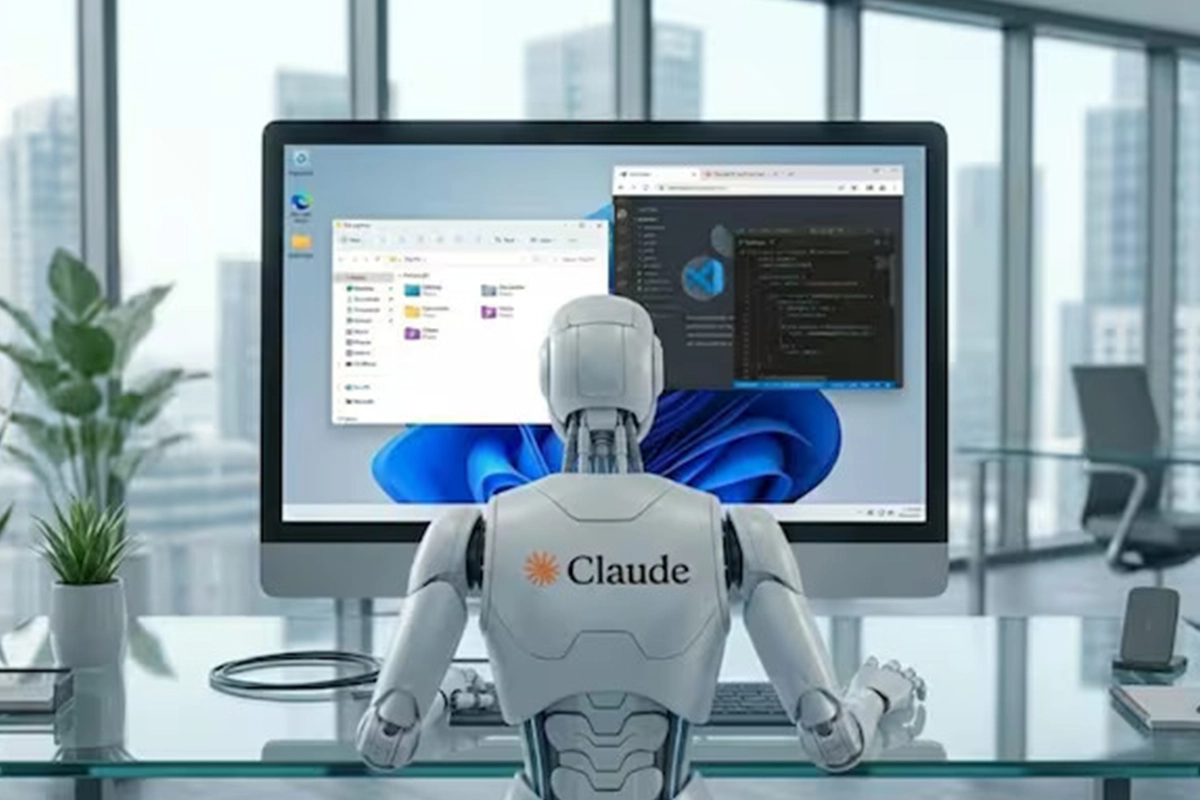
Claude’s computer use feature is a real, working capability, not a marketing label. It is also, by Anthropic’s own description, an early research preview with real limitations: it’s slower than connector-based alternatives, it sees whatever is on your screen during a session, and Anthropic explicitly tells users not to point it at sensitive categories of data.
Used for what it’s actually built for. Cross-application tasks with no existing connector run while you step away; it does something genuinely new. Used as a general-purpose desktop replacement for careful manual work, it isn’t there yet, and Anthropic isn’t claiming otherwise.
Confirm current plan availability and feature status at claude.com before relying on anything here, since this is explicitly a fast-moving research preview rather than a finished, stable feature.
Frequently Asked Questions
What is Claude’s Computer Use feature, exactly?
It’s Claude’s ability to see your screen through screenshots and control your mouse and keyboard to operate applications directly, used as a fallback when no faster connector or browser path is available. It’s accessed through Cowork or Claude Code inside Claude Desktop.
Which Claude plans include Computer Use?
As of this writing, it’s a research preview available to Pro and Max plan subscribers only, through Claude Desktop on macOS or Windows. Team and Enterprise plans do not have access to it yet, according to Anthropic’s own Help Center documentation.
Is Computer Use safe to use with sensitive information?
Anthropic explicitly advises against using it for financial accounts, legal documents, medical information, or other people’s personal data, and recommends closing sensitive applications before starting a session, since computer use has no sandbox isolating it from your real desktop.
How is Computer Use different from Claude in Chrome?
Claude in Chrome only operates inside browser tabs and requires you to stay present. Computer use through Cowork can control any application on your desktop and can keep working while you’re away, as long as your computer stays on and Claude Desktop stays open.
Does Computer Use work without an internet connection?
No. All of Claude’s reasoning happens in Anthropic’s cloud. Your desktop needs to stay on and connected throughout any active session; closing the app or losing connectivity ends the task.